Notification Center for Agencies: Control Client Update Alerts & Email Noise
Stop spamming clients and missing approvals. Use a Notification Center, update alerts, and notification schedules to batch file changes and send important updates instantly.
Notification Center & Update Alerts: Control Client Notifications Without Spamming Them
If you run a creative or marketing agency, client approvals don’t usually get stuck because your work is bad. They get stuck because updates are noisy, scattered, and easy to miss.
Clients send messages like:
- “Which version should I review?”
- “I didn’t get the link.”
- “Can you resend the update?”
And agencies end up doing admin work: resending links, chasing feedback, and explaining what changed.
A Notification Center solves this by giving you and your clients control over update alerts, notification schedules, and when clients get notified about changes. Instead of random pings all day, you send fewer, clearer notifications at the right time, with the right link, to the right people.
This guide shows how to use Notification Center and update alerts to improve your approval workflow, reduce email noise, and keep projects moving.
Why client notifications break approval workflows
Most teams rely on “manual updates”:
- upload file
- send message
- hope the client sees it
That breaks in real life.
1) Notifications arrive at the wrong time
Clients are busy. Your update arrives mid-meeting or late in the day, and gets ignored.
“I will check later” becomes “never”.
2) Too many updates = clients stop caring
If a client gets 5–10 notifications a day, your updates become noise. The one update that matters gets missed.
3) Updates aren’t tied to a single source of truth
Multiple links, multiple versions, multiple channels create confusion. Confusion slows approvals.
What agencies need is simple:
- one place where changes happen
- one link that stays valid
- predictable update alerts
- the ability to send urgent notifications instantly
What a Notification Center actually is
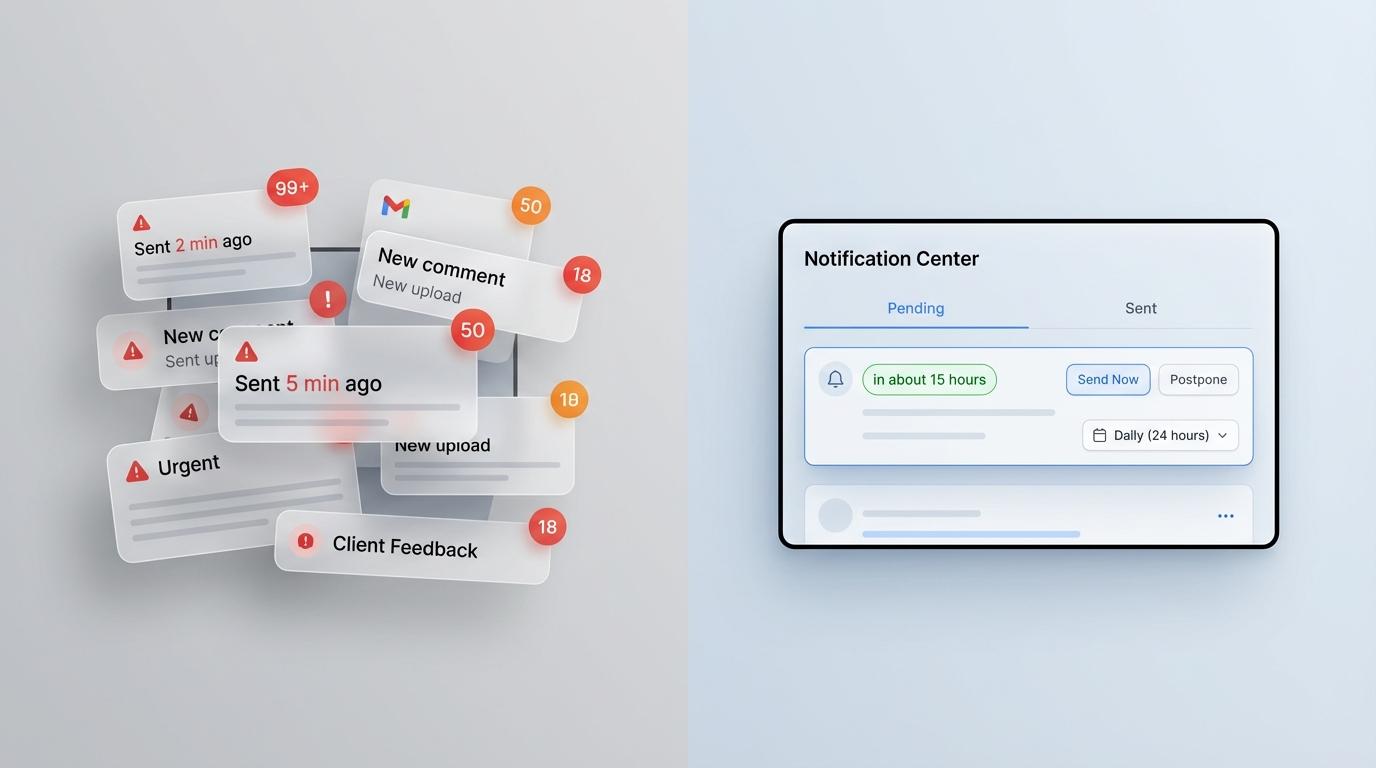
A Notification Center is a control panel for outgoing notifications.
It lets you:
- preview what recipients will receive
- batch notifications (reduce email volume)
- give your clients a choice when updates are received
- send a specific notification instantly when needed
- keep “watchers” informed without spamming them
In ZapFolder, the Notification Center is designed for teams sharing files, feedback, and versions with clients.
Best practice: batch notifications by default
For most client work, batching is the highest-leverage move.
Instead of notifying clients on every tiny change, you:
- make updates throughout the day
- send one clear update at a predictable time
This increases:
- email open rate (fewer messages = more attention)
- client response rate (clear “action moment”)
- approval speed (less confusion)
And it protects your team’s focus.
How to set notification frequency for a project in ZapFolder
If you want clean update alerts, start by setting a notification schedule per project.
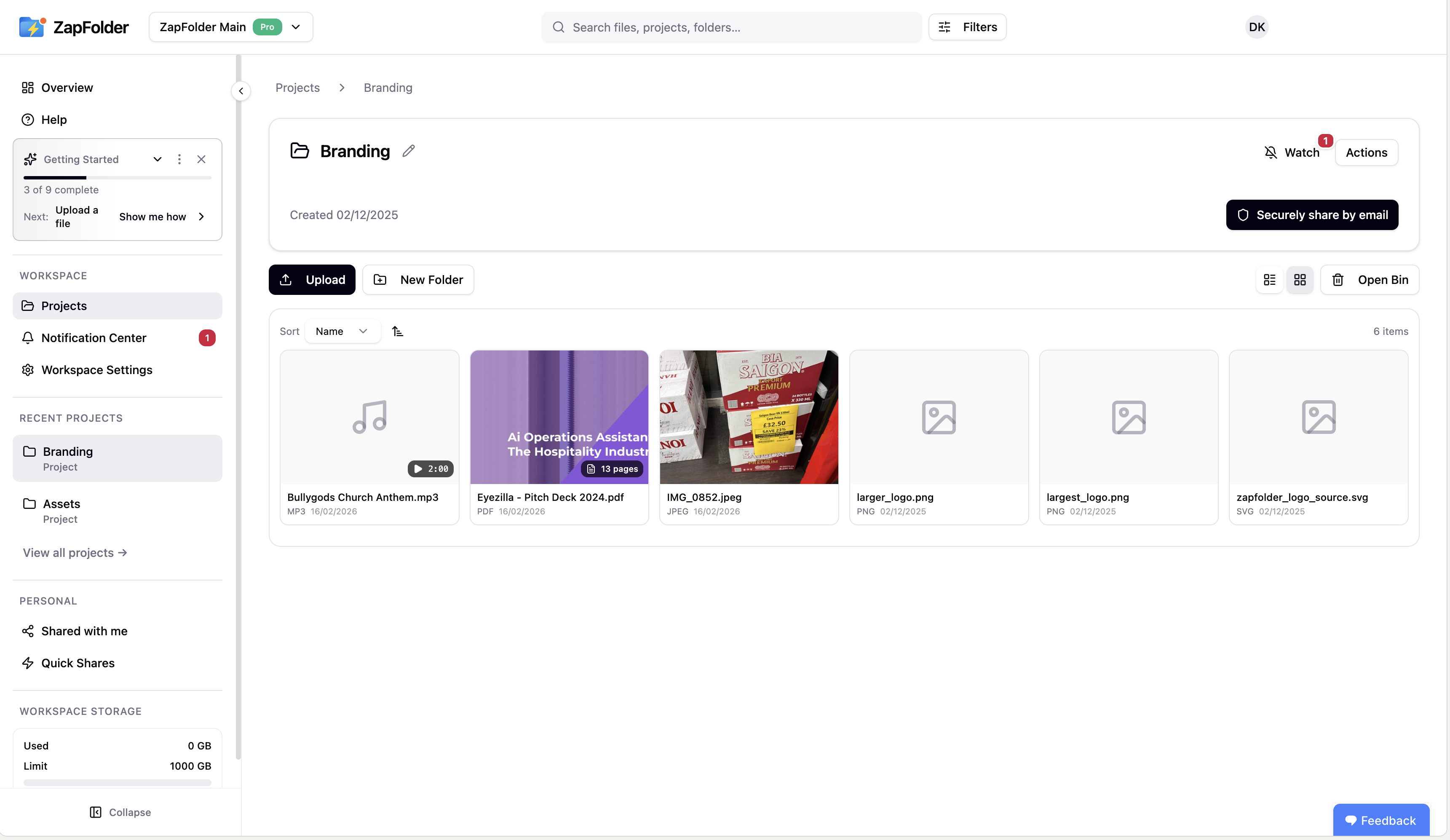
Step 1: Open the project
Open the project you want to manage (example: “Branding”).
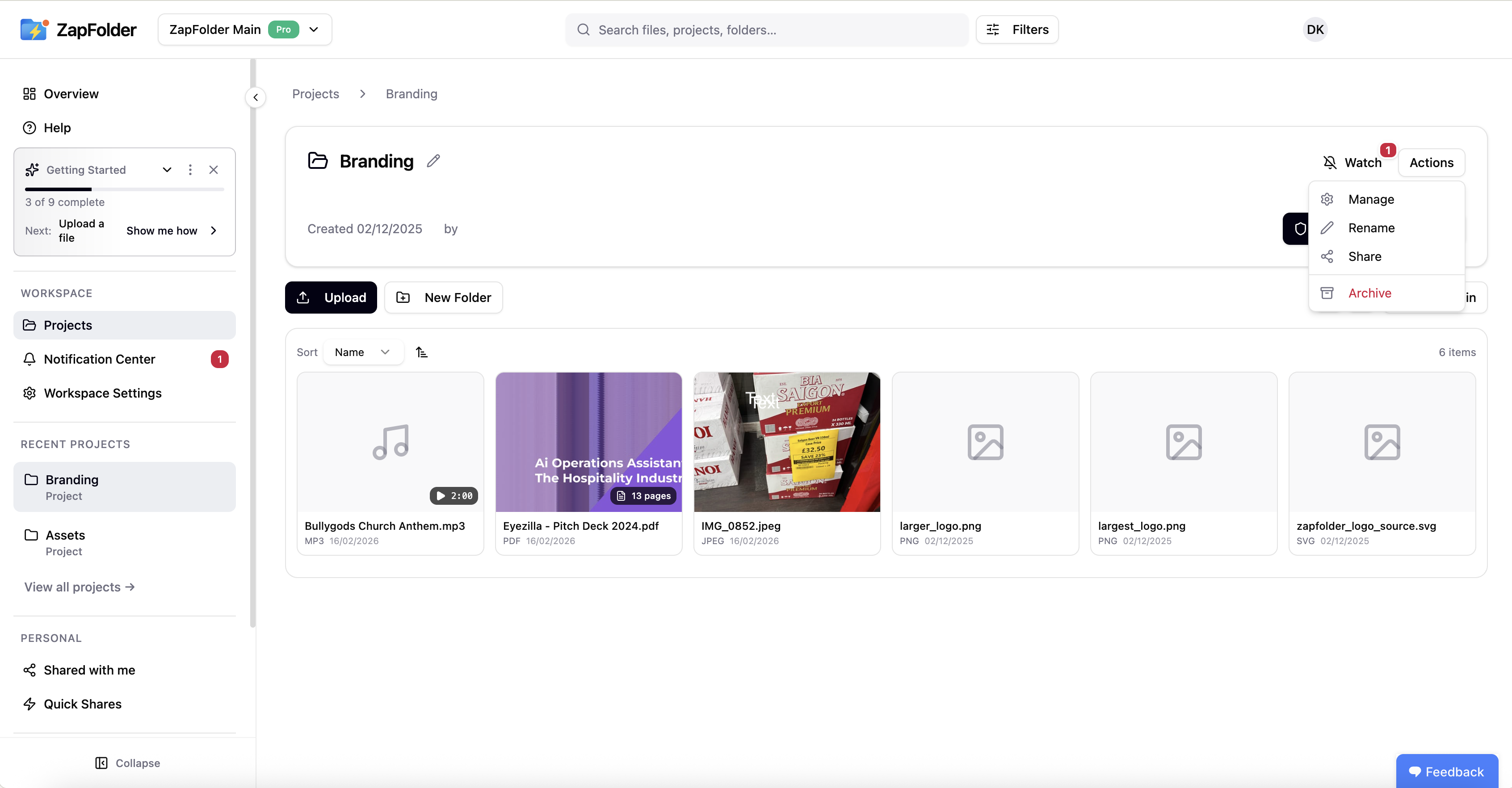
Step 2: Click Actions → Manage
In the top-right corner, click Actions, then select Manage.
Step 3: Pick notification frequency
Go to the Notifications tab and choose how often watchers receive notifications.
Available frequencies include:
- 5 minutes
- 15 minutes
- 30 minutes
- Hourly (1 hour)
- 2 hours
- 4 hours
- 8 hours
- 12 hours
- Daily (24 hours)
This batching reduces inbox noise while still keeping clients updated.
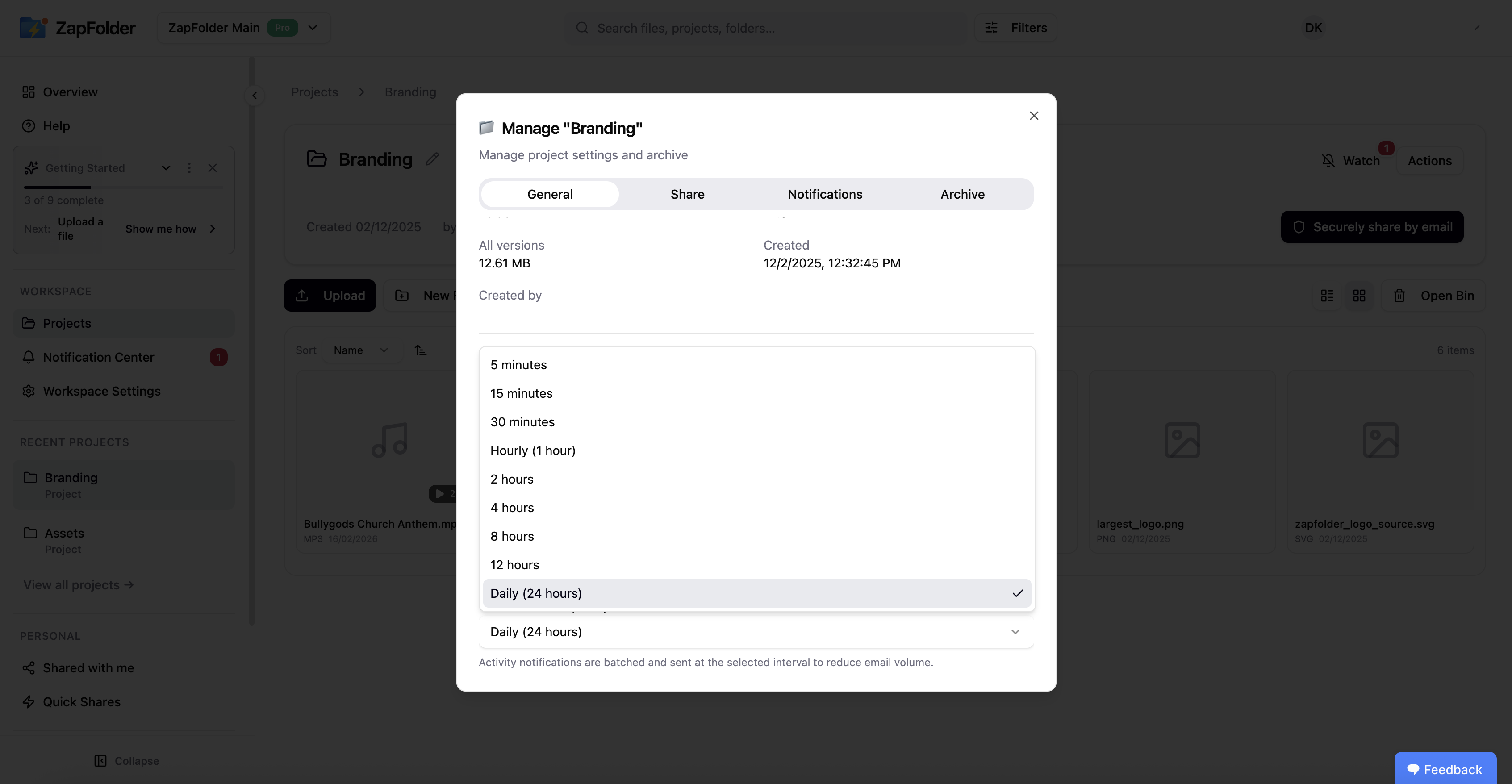
What this means in practice:
If you set Daily (24 hours), clients receive a single daily digest instead of getting pinged every time someone comments or uploads.
Pro tip: send one specific update instantly (Notification Center)
Batching is the default. But sometimes you need to notify “right now.”
Examples:
- final approval needed today
- a critical fix shipped
- deadline risk
- urgent version change
As a project admin, you can push a specific notification instantly.
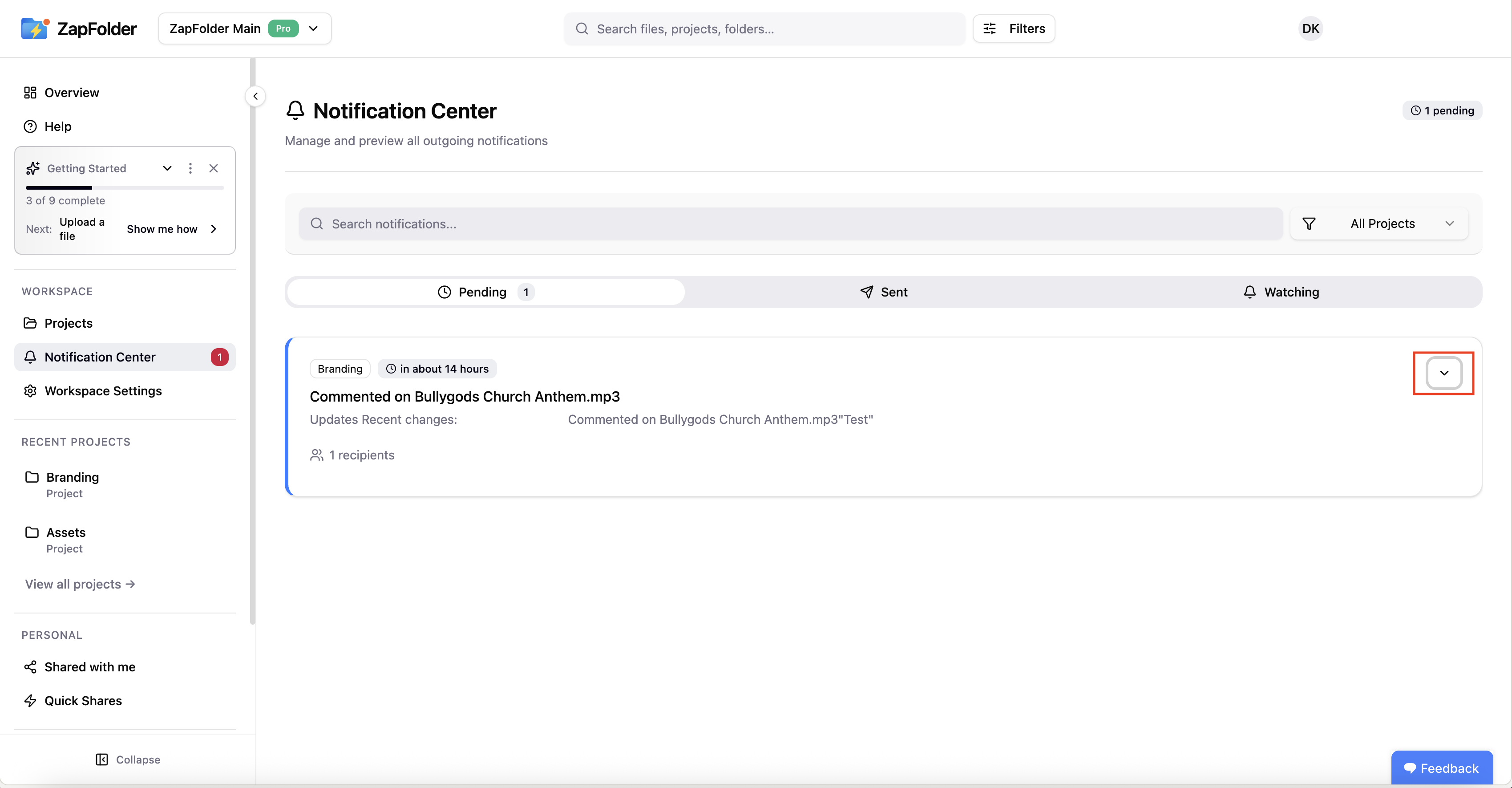
Step 1: Open Notification Center
In the sidebar, go to Notification Center.
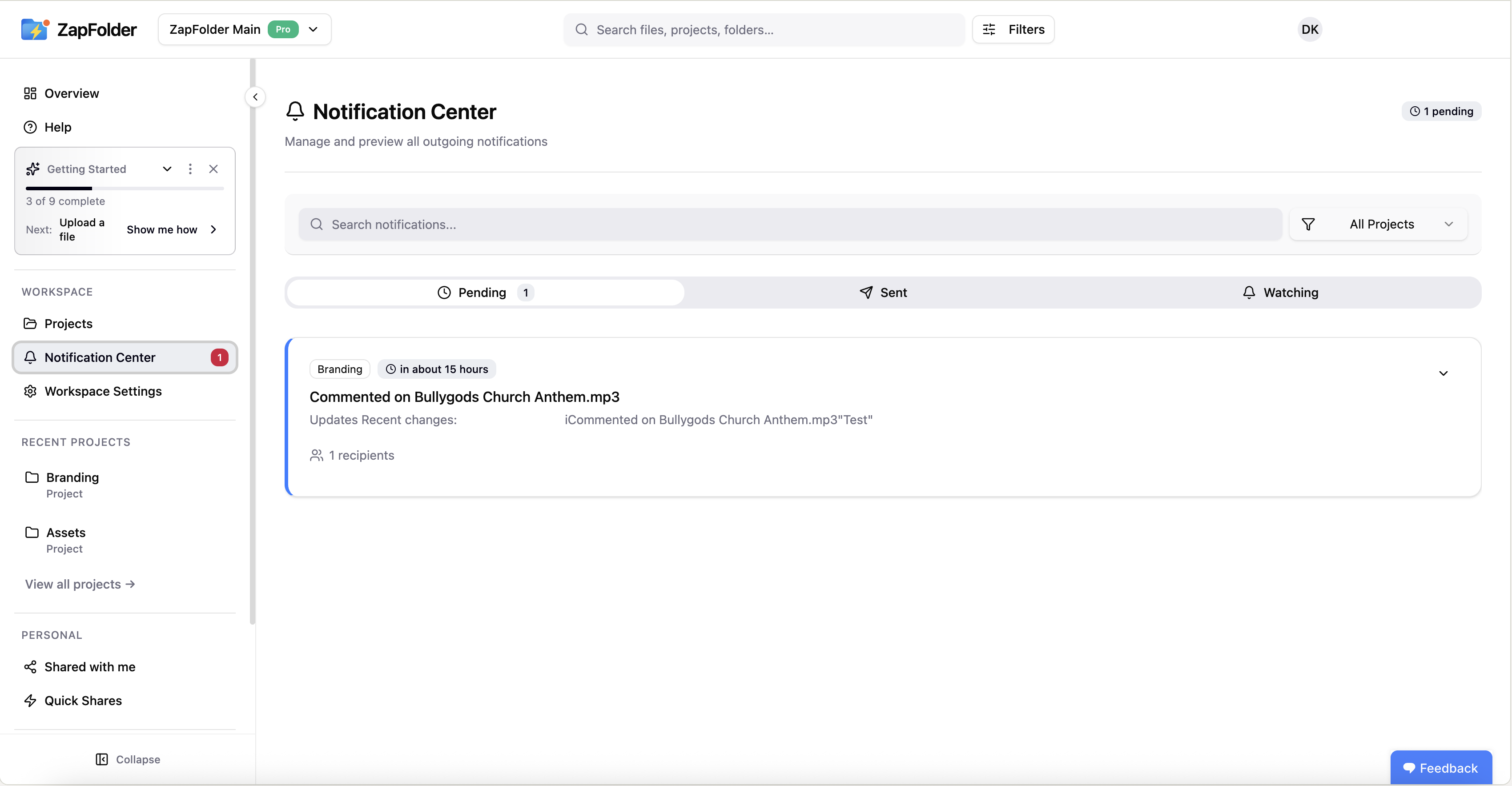
Step 2: Expand a notification
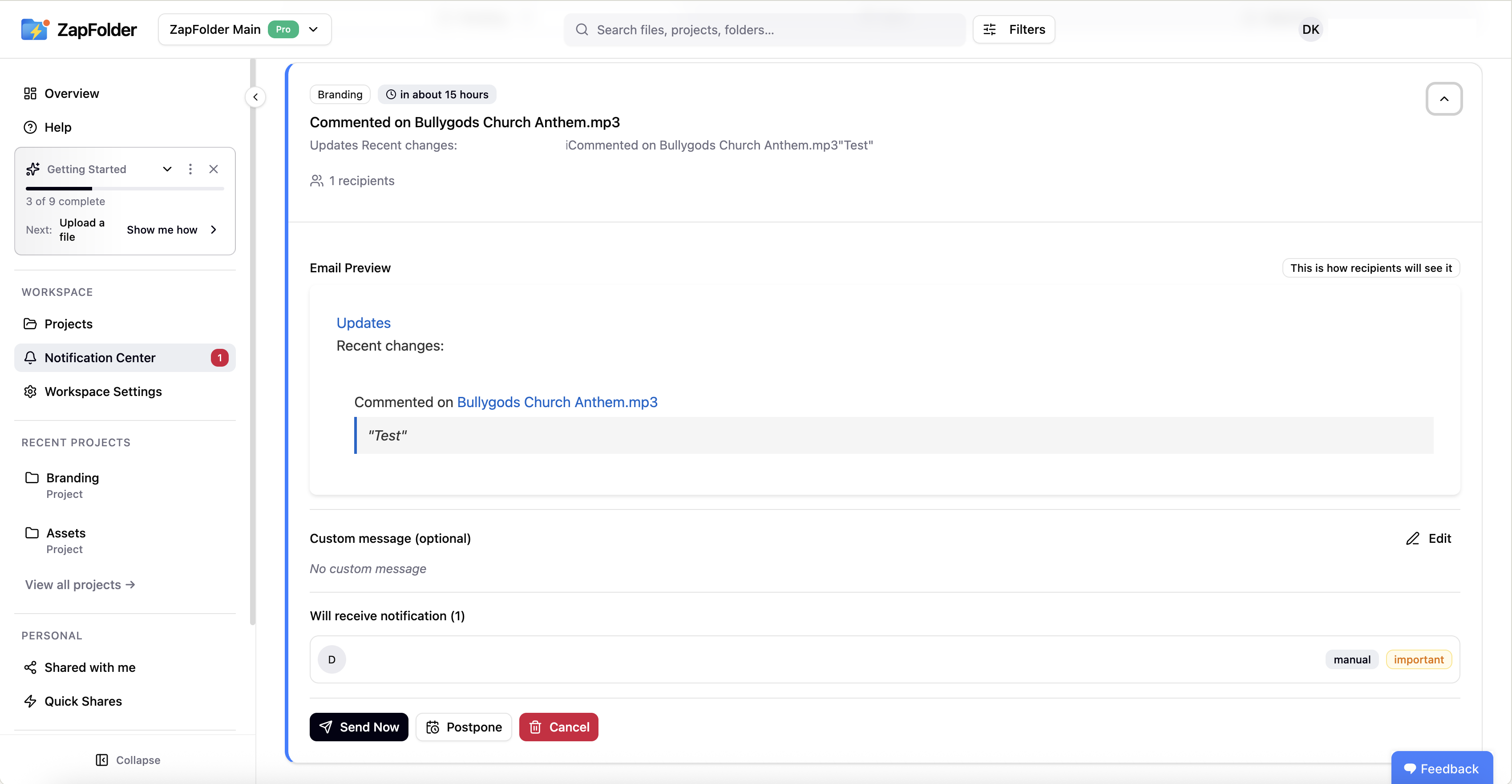
Open a pending notification to preview exactly what recipients will see.
Step 3: Choose Send Now, Postpone, or Cancel
You can:
- Send Now (instant update)
- Postpone (delay it)
- Cancel (drop it)
This gives you control over the timing of client communication without breaking your batching workflow.
Why this improves approvals (and reduces “chasing”)
When you control update alerts, three things happen:
- Clients know when to expect updates
- Updates feel important (not spam)
- Feedback comes faster because context is clear
This is the difference between “random messages all day” and “a professional delivery system”
Quick checklist: anti-chaos notification rules
Use these rules and your workflow stays clean:
- Batch by default
- Use one project link as the source of truth
- Each notification should have one action request (“Please review and approve”)
- Instant notifications only for urgent blockers
- Preview before sending (Notification Center)
Try Notification Center + update alerts in ZapFolder
ZapFolder helps agencies deliver files and updates without chaos:
- projects stay organised
- versions stay clear
- clients get predictable update alerts
- admins can send urgent notifications instantly
Start here:
https://zapfolder.com/share-now
If you want permanent project links, version history, and advanced controls, click Start Sharing for Free to claim your ZapFolder account.
One project. One link. Controlled notifications. Faster approvals.